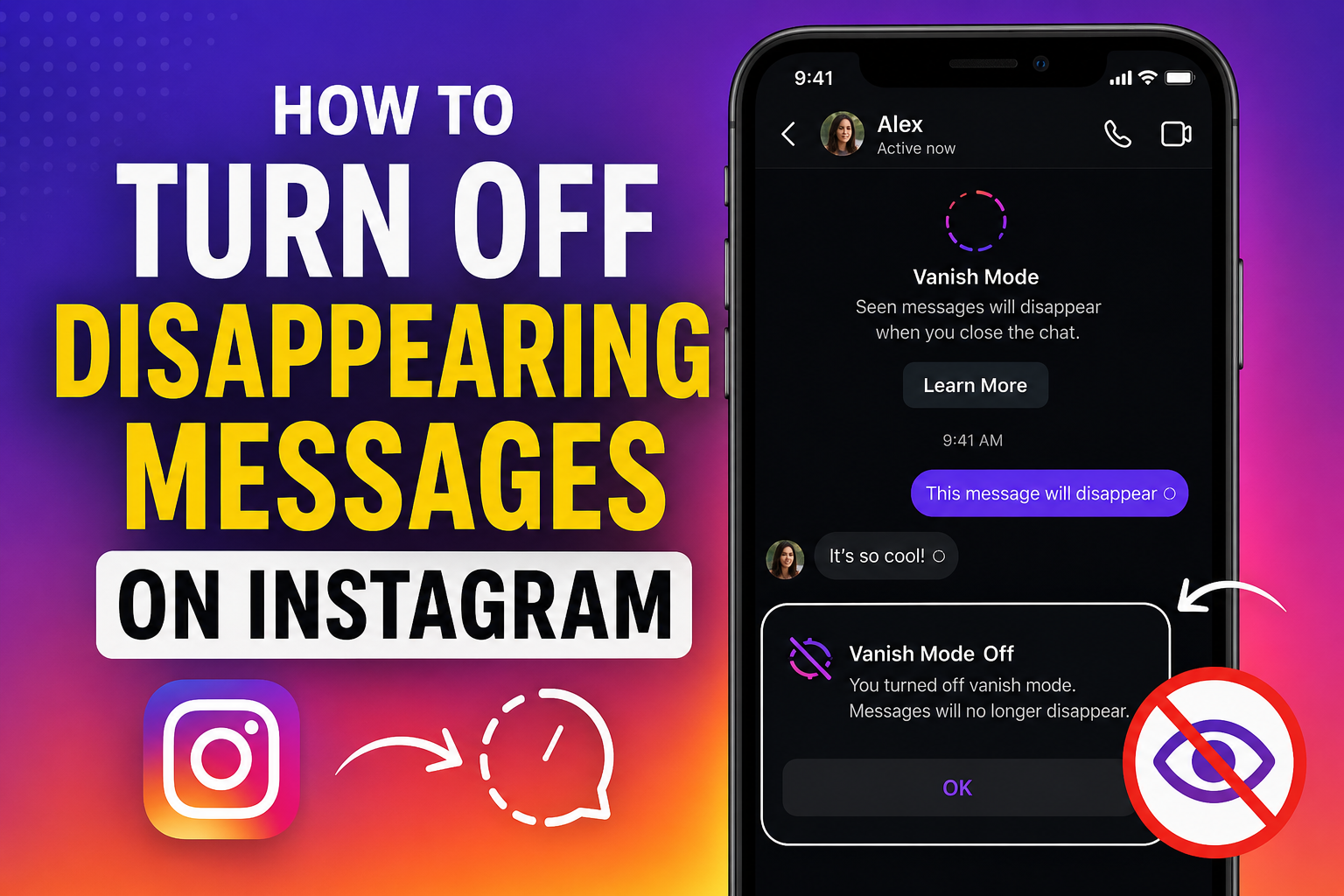
Instagram’s Disappearing Messages feature allows messages to automatically disappear after they’ve been seen or when a chat is closed. While some users enjoy the added privacy, others find it confusing or inconvenient, especially when important messages vanish unexpectedly.
If you’re wondering how to turn off disappearing messages on Instagram, this detailed guide will walk you through everything you need to know, including what disappearing messages are, why they’re enabled, and how to disable them on Android, iPhone, and Instagram Web.
What Are Disappearing Messages on Instagram?
Disappearing messages are messages, photos, videos, voice notes, and other content sent in a chat that automatically disappear after being viewed or after a certain period.
This feature is primarily available through:
- Vanish Mode
- View Once Photos/Videos
- Allow Replay Photos/Videos
- Temporary message settings in Instagram Direct Messages (DMs)
The goal is to provide more privacy, but it can sometimes cause users to lose important conversations.
Why Are My Instagram Messages Disappearing?
There are several reasons why your messages may be disappearing:
1. Vanish Mode Is Enabled
The most common reason is that Vanish Mode has been turned on in the conversation.
When Vanish Mode is active:
- Messages disappear after they’re seen.
- The chat clears when both users leave.
- Screenshots may trigger notifications.
2. View Once Media Was Sent
Photos and videos can be sent with the “View Once” option.
Once viewed:
- The content disappears automatically.
- It cannot be reopened.
3. Instagram Temporary Features
Instagram occasionally introduces temporary messaging features that can make messages disappear after viewing.
Did You Know :- How to Turn Off Vanish Mode on Instagram (Complete Guide)
How to Turn Off Disappearing Messages on Instagram
Method 1: Turn Off Vanish Mode
This is the most effective way to stop disappearing messages.
On Android and iPhone
Step 1
Open the Instagram app.
Step 2
Tap the Messenger/DM icon in the top-right corner.
Step 3
Open the conversation where messages are disappearing.
Step 4
Swipe up from the bottom of the chat screen.
Step 5
If Vanish Mode is enabled, you’ll see a notification saying:
“Vanish Mode Off”
The chat background will return to normal.
Done!
New messages will no longer disappear automatically.
Method 2: Disable View Once Photos and Videos
Sometimes users mistake disappearing photos for disappearing messages.
How to Prevent This
When sending media:
Instead of selecting:
- View Once
Choose:
- Allow Replay
- Keep in Chat
This ensures the recipient can view the content multiple times.
Method 3: Ask the Other Person to Disable Vanish Mode
Instagram chats involve both participants.
If the other person repeatedly enables Vanish Mode:
- You may see disappearing messages again.
- Either participant can activate the feature.
In this case:
- Open the chat.
- Turn Vanish Mode off again.
- Ask the other user not to enable it.
How to Check If Vanish Mode Is Enabled
You can easily identify Vanish Mode.
Signs Vanish Mode Is On
- Dark or black chat background.
- Notification saying “Vanish Mode”.
- Messages disappear after viewing.
- Swipe-up instructions visible.
If you notice these signs, Vanish Mode is active.
How to Turn Off Vanish Mode on Instagram iPhone
For iPhone users:
Steps
- Open Instagram.
- Go to Direct Messages.
- Select the conversation.
- Swipe up from the bottom.
- Release your finger.
- Wait for the confirmation message.
Vanish Mode will be disabled immediately.
How to Turn Off Vanish Mode on Instagram Android
Android users follow nearly identical steps.
Steps
- Launch Instagram.
- Open Messages.
- Open the chat.
- Swipe upward from the bottom.
- Release and wait.
Instagram will display:
“Vanish Mode Off”
Your messages will remain visible.
Can You Turn Off Disappearing Messages for All Chats?
Currently, Instagram does not offer a universal setting to disable disappearing messages across all conversations.
You must turn off Vanish Mode individually for each chat where it is enabled.
How to Stop Receiving Disappearing Photos and Videos
If someone keeps sending disappearing media:
Option 1
Ask them to send photos using:
- Keep in Chat
- Allow Replay
Option 2
Request regular photo sharing through:
- Instagram chat uploads
- Posts
- Shared albums
Why Can’t I Turn Off Vanish Mode?
If you’re having trouble disabling the feature, try the following solutions.
Update Instagram
Older versions may contain bugs.
To Update
Android
- Open Google Play Store
- Search Instagram
- Tap Update
iPhone
- Open App Store
- Search Instagram
- Tap Update
Restart the App
Sometimes a simple restart resolves the issue.
Steps
- Close Instagram completely.
- Reopen the app.
- Try disabling Vanish Mode again.
Log Out and Log Back In
Steps
- Open Instagram Settings.
- Tap Log Out.
- Sign in again.
- Check the chat.
Does Instagram Notify When Vanish Mode Is Turned Off?
Yes.
Both users in the conversation may see a notification indicating that Vanish Mode has been disabled.
This is completely normal and part of Instagram’s privacy system.
Are Disappearing Messages Recoverable?
Generally, disappearing messages cannot be recovered after they vanish.
Once deleted through Vanish Mode:
- Instagram does not provide a recovery option.
- The messages are removed from the chat.
This is why important information should not be shared using disappearing messages.
Is Vanish Mode Safe?
Vanish Mode is designed to improve privacy.
Benefits
- Private conversations
- Reduced chat history
- Temporary messaging
Drawbacks
- Important messages can disappear
- Easy to lose information
- Potential confusion for users
For most everyday conversations, regular Instagram messaging is often more practical.
Tips to Avoid Losing Important Messages
Use Regular Chat Mode
Keep Vanish Mode disabled unless necessary.
Save Important Information Elsewhere
Don’t rely on disappearing messages for:
- Addresses
- Phone numbers
- Work information
- Login credentials
Use Keep in Chat
For photos and videos, select:
- Keep in Chat
instead of View Once.
Conclusion
If you’re wondering how to turn off disappearing messages on Instagram, the solution is usually as simple as disabling Vanish Mode. Open the conversation, swipe up from the bottom of the chat screen, and Instagram will switch Vanish Mode off.
You should also be aware of disappearing photos and videos sent with the View Once option, as these are separate from Vanish Mode. By using regular messaging and choosing Keep in Chat, you can ensure that important conversations and media remain accessible.
Whether you’re using Android, iPhone, or Instagram Web, understanding how disappearing messages work can help you avoid losing valuable information and enjoy a smoother messaging experience.
FAQs About Turning Off Disappearing Messages on Instagram
1. How do I turn off disappearing messages on Instagram?
Open the chat, swipe up from the bottom of the conversation, and Instagram will disable Vanish Mode.
2. Why are my Instagram messages disappearing automatically?
Most likely, Vanish Mode is enabled or someone sent a View Once photo or video.
3. Can I permanently disable Vanish Mode on Instagram?
No. Instagram currently does not offer a global setting to permanently disable Vanish Mode for all chats.
4. Can I recover disappearing Instagram messages?
In most cases, no. Once Vanish Mode messages disappear, they cannot be restored.
5. Does Instagram notify the other person when I turn off Vanish Mode?
Yes. Instagram may show a notification in the chat indicating that Vanish Mode has been turned off.
6. Why can’t I see the option to turn off Vanish Mode?
Make sure your Instagram app is updated to the latest version and try reopening the conversation.
7. How do I stop disappearing photos on Instagram?
Ask the sender to use Keep in Chat or Allow Replay instead of View Once.
8. Is Vanish Mode available on all Instagram accounts?
Vanish Mode is available in supported regions and on updated versions of Instagram, though availability may vary.