

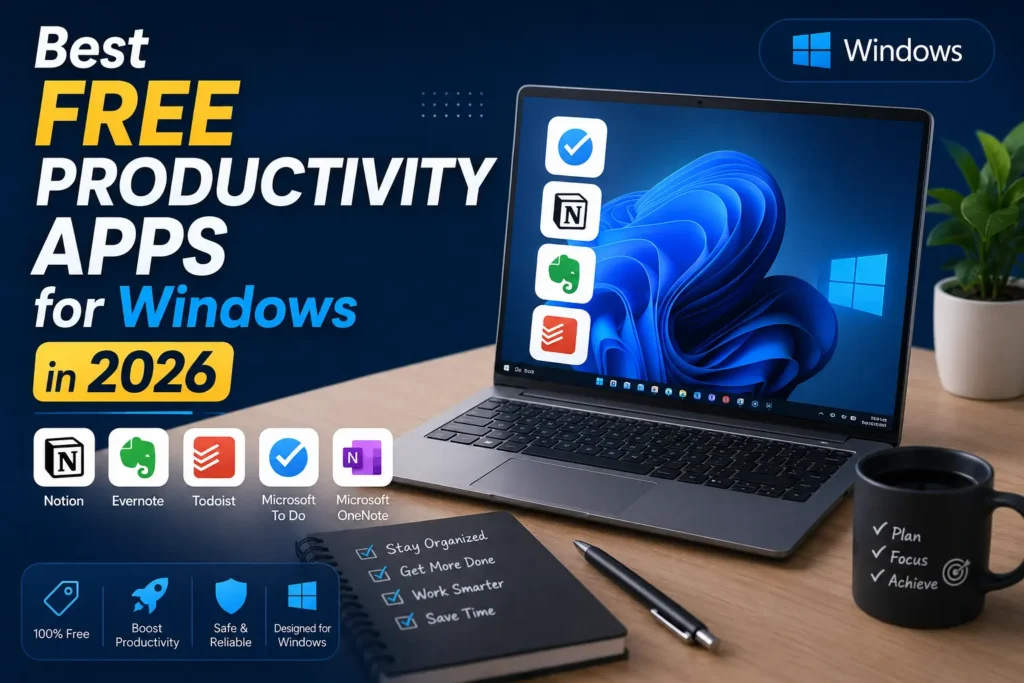
If your desktop looks like a graveyard of forgotten browser tabs, sticky notes, and half-finished to-do lists, you’re not alone. Windows is a powerful operating system, but it doesn’t organize your work for you — that’s where the right software comes in. The good news is that in 2026, you don’t need a subscription to get serious productivity gains. Some of the best free productivity apps for Windows now rival, and sometimes beat, their paid counterparts.
This guide rounds up the best free productivity apps for Windows in 2026, organized by category — task management, note-taking, launchers and search, automation, and system utilities — so you can build a toolkit that actually fits how you work. Whether you’re a student juggling assignments, a freelancer managing five clients at once, or a developer trying to shave seconds off every repetitive task, there’s something here for you.
Why Free Productivity Apps Are Better Than Ever in 2026
A few years ago, “free” often meant “watered-down.” That’s changed. Several forces are driving this shift:
- Open-source momentum: Projects like Microsoft PowerToys, Joplin, and Everything are maintained by active communities (and in PowerToys’ case, Microsoft itself), which means frequent updates without a paywall.
- Freemium competition: Todoist, Notion, Trello, TickTick, and ClickUp all compete aggressively on their free tiers because the real business model is upselling teams later — individual users benefit from that competition.
- AI features trickling down: AI-assisted task suggestions, smart scheduling, and text cleanup are increasingly available even on free plans, not just premium ones.
- Native Windows integration: Microsoft has poured resources into free tools like Microsoft To Do and PowerToys, tightly integrating them with Outlook, OneDrive, and Windows 11’s shell.
The result: free plans now genuinely cover the vast majority of what an individual or small team needs day to day, with paid tiers reserved mostly for larger teams, advanced automation, or heavier storage.
How We Chose These Apps
Before jumping into the list, here’s what we prioritized:
- Genuinely free, not just a trial. Every app on this list has a permanent free tier or is fully free and open-source.
- Windows-first performance. Lightweight resource usage, native look and feel, and no unnecessary bloat.
- Integration with the Microsoft ecosystem. Since most Windows users already rely on Outlook, OneDrive, and Teams, we favored tools that complement rather than fight that ecosystem.
- Real workflow value. Tools that solve an actual daily friction point — not just another app for the sake of it.
Let’s get into it.
Part 1: Task and Project Management Apps
These apps help you track to-dos, manage projects, and stay on top of deadlines — the backbone of any productivity system.
1. Microsoft To Do
Microsoft To Do is the natural starting point for anyone already living inside Outlook and Microsoft 365. Its standout feature is My Day, a focused daily task view that helps you choose what matters today instead of staring at every task from every project. Each morning you build a realistic, intentional list rather than getting overwhelmed by a giant backlog. Task suggestions use AI to recommend what should go into My Day based on deadlines, importance, and your usage patterns.
It isn’t the most advanced task manager on the market, and that’s kind of the point — if you want something simple, Microsoft To Do is a safe, low-friction starting point. It’s completely free with a Microsoft account, integrates with Outlook for meeting-linked tasks, syncs with Teams shared notebooks, and connects to OneDrive for file storage.
Best for: Simple daily task lists and people already inside the Microsoft ecosystem.
2. Todoist
Todoist has built a loyal following for a reason: natural-language date entry (“every Monday at 9am”), smart reminders, and clean project organization. It’s great for personal tasks and smart reminders, and the free plan supports a generous number of active projects and collaborators, making it a strong step up from Microsoft To Do without jumping into a full project management platform.
Best for: People who want more structure and recurring-task power than Microsoft To Do offers, without paying for a heavyweight PM tool.
3. Trello
Trello remains the gold standard for visual, Kanban-style planning. It’s best for teams who like visual boards and Kanban planning, letting you drag cards between columns like “To Do,” “In Progress,” and “Done.” It’s especially useful for small teams or personal projects where you want a bird’s-eye view of progress rather than a flat list.
Best for: Visual thinkers and small teams running lightweight Kanban workflows.
4. Notion
Notion has become the closest thing to an all-in-one workspace for individuals and small teams. It’s a powerful tool for notes, wikis, and team collaboration, letting you build databases, docs, and task boards inside a single flexible canvas. Along with tools like Lark, Trello, and Todoist, it represents one of the free solutions available for nearly every kind of workflow, whether that’s personal task tracking, team collaboration, or documentation.
Best for: People who want a single, customizable hub for notes, tasks, and project docs.
5. TickTick
TickTick blends calendar planning with built-in focus tools. It combines calendar planning with Pomodoro timers, so you can time-block your day and then work in focused sprints without leaving the app. It’s a strong pick if you want task management and time management in one place.
Best for: Users who want a task manager with a built-in Pomodoro timer and calendar view.
6. ClickUp
ClickUp positions itself as an all-in-one productivity platform, and its free tier is unusually generous for solo users and small teams — task lists, docs, goals, and basic automations are all included. It’s more complex to set up than Todoist or Trello, but it rewards the investment if you need more structure than a simple list but don’t want to pay for Notion or Asana premium tiers.
Best for: Small teams that want project management, docs, and goal tracking in one free platform.
7. Reclaim
Reclaim takes a different approach: instead of a separate task list, it adds your habits and tasks right into your calendar, automatically finding time blocks for your to-dos around existing meetings. If your biggest problem is that tasks never make it onto your actual schedule, Reclaim solves that directly.
Best for: Calendar-first planners who want tasks automatically scheduled around meetings.
Part 2: Note-Taking and Knowledge Management Apps
Note apps are designed for capturing ideas, organizing information, and building a personal knowledge base over time. Some are simple; others support structured systems with linking between notes.
8. OneNote
OneNote remains one of the most capable free note apps available on Windows, largely because it’s bundled with a Microsoft account and deeply tied into the ecosystem. It integrates with Outlook for meeting notes, Teams for shared notebooks, OneDrive for file storage and sync, and Office apps for embedding Excel or Word documents directly into a page, plus a web clipper for saving articles into notebooks. Storage is tied to your OneDrive free tier of 5GB, which is generous enough for most personal use, with paid upgrades starting at $1.99/month for 100GB if you need more.
Best for: Freeform note-taking with heavy Microsoft 365 integration.
9. Notion (Notes Use Case)
Worth mentioning again here specifically for notes: Notion’s linked databases and nested pages make it a genuine alternative to dedicated wiki tools, especially if you’re already using it for tasks and want everything under one roof.
10. Joplin
If privacy is a priority, Joplin is worth a serious look. It’s a private, open-source note app built for teams — and individuals — who care about privacy, with end-to-end encryption and support for Markdown, making it a favorite among developers and privacy-conscious users who don’t want their notes living permanently on someone else’s server.
Best for: Privacy-focused users who want open-source, encrypted note-taking.
11. Obsidian
Obsidian has become the tool of choice for people building a personal “second brain.” Notes are stored as local Markdown files and linked together, letting you build a web of interconnected ideas rather than a flat folder structure. The free tier covers virtually everything an individual needs; sync and publishing are the only paid add-ons.
Best for: Knowledge workers, writers, and researchers building an interconnected notes system.
Part 3: Launchers, Search, and Navigation Tools
These utilities help you quickly find files, launch apps, and access information without digging through menus — small tools that save disproportionately large amounts of time.
12. Microsoft PowerToys
PowerToys deserves its own section because it’s less “one app” and more “a toolbox of small, sharp tools.” It’s a free, open-source set of utilities designed to help power users and developers get more out of Windows, building on familiar Windows experiences while adding tools that boost productivity, streamline workflows, and unlock customization that doesn’t exist out of the box. Originally launched in the Windows 95 era, it made a comeback in 2019 as an open-source project and today includes around 28 utilities addressing real workflow pain points.
Some standout tools inside PowerToys:
- FancyZones — custom window layouts that go beyond Windows’ default snap zones, letting you carve your screen into precise, reusable regions for multitasking.
- PowerRename — batch renaming for files, which is a lifesaver if you regularly deal with large folders of photos, invoices, or downloads.
- Command Palette (the evolution of PowerToys Run) — access frequently used commands, apps, and tools from a single, fast, customizable interface, so you can launch anything without touching the mouse.
- Advanced Paste — paste clipboard text into any format you need, with an optional AI-powered feature.
- Color Picker — a system-wide color-picking utility for grabbing colors from anywhere on screen.
- Always On Top, Awake, Crop and Lock, and Environment Variables manager round out a toolkit built for developers and power users who live in dozens of windows at once.
PowerToys is completely safe, an official Microsoft open-source project with frequent updates, has a light impact on system resources, and individual tools can be disabled if you don’t use them. If you install nothing else from this list, PowerToys is the one that pays off almost immediately.
Best for: Power users and developers who want granular control over window management, renaming, and quick launching.
13. Everything
If Windows Search has ever made you wait several seconds (or longer) to find a file you know exists, Everything will feel like magic. It speeds up file searching by indexing your files and letting you search instantly, with results appearing as you type — a simple productivity tool that does one thing extremely well. It’s free, tiny, and about as close to instant as file search gets on Windows.
Best for: Anyone frustrated with slow native Windows file search.
14. Flow Launcher
Flow Launcher is a keyboard-first launcher for people who’d rather type than click. It helps you open apps, search files, and run commands quickly from one place, replacing menu-clicking with keyboard input, and it supports plugins for added functionality — everything from calculator shortcuts to web search integrations.
Best for: Keyboard-centric users who want an app launcher with extensibility.
Part 4: Automation and Utility Apps
Windows automation tools handle repetitive work for you — typing shortcuts, workflow automation, or connecting different apps together. Utility apps, meanwhile, improve everyday interactions with your computer: clipboard managers, system tweaks, and background helpers.
15. Ditto (Clipboard Manager)
Copy-pasting one thing at a time is fine — until you need to juggle five snippets across a report. Ditto solves this by storing your clipboard history so you can reuse anything you’ve previously copied, running quietly in the background and staying easy to access — a simple but genuinely effective productivity boost. It’s free and open source, with no catch.
Best for: Anyone who copies and pastes frequently across documents, emails, or code.
16. AutoHotkey
AutoHotkey is the granddaddy of Windows automation tools, and it’s still unmatched for depth. It lets you remap keys, build custom keyboard shortcuts, and script entire multi-step workflows — from auto-filling forms to launching a specific set of apps with one keystroke. It has a learning curve, but for repetitive daily tasks, the time saved compounds quickly.
Best for: Users comfortable with light scripting who want serious automation.
17. ShareX
For anyone who takes screenshots or records screen tutorials regularly, ShareX is hard to beat. It’s a favorite among content creators and educators for snapping precise screenshots and recording tutorials, and with annotation, workflow automation, and direct upload support, it beats many paid tools outright.
Best for: Content creators, educators, and anyone documenting workflows visually.
18. VoiceDash (AI Voice-to-Text)
Not every productivity bottleneck is about organization — sometimes it’s about typing speed. VoiceDash is built for people whose biggest bottleneck is typing, turning natural speech into polished written text across everyday apps like email, notes, documents, and chat messages. Unlike basic dictation, which simply converts speech into words, VoiceDash aims to produce cleaner, more structured, professional-ready text.
Best for: Professionals who write constantly and want to speak instead of type.
19. Winaero Tweaker
For users who like to fine-tune Windows’ behavior — context menus, visual effects, privacy settings — Winaero Tweaker is a well-regarded, free all-in-one customization utility that consolidates dozens of otherwise hidden Windows settings into one interface.
Best for: Users who want deep control over Windows’ look, feel, and behavior.
20. Fan Control and Lightweight System Monitors
Not glamorous, but genuinely useful: free system monitors and fan-control utilities keep your machine running cool and quiet under heavy workloads, which indirectly protects your productivity by preventing thermal throttling during long work sessions or renders.
Best for: Users running demanding workloads who want to protect performance over time.
How to Choose the Right Free Productivity Apps for Your Workflow
With 20 solid options on the table, the challenge shifts from “what’s available” to “what should I actually install.” A few guiding questions:
- Are you already deep in the Microsoft ecosystem? If yes, start with Microsoft To Do, OneNote, and PowerToys — they’re free, well-integrated, and require zero extra accounts.
- Do you work with a team? Trello, Notion, or ClickUp will serve you better than solo-focused tools like Todoist or TickTick.
- Is your bottleneck organization or execution? If you already know what to do but struggle to focus, look at TickTick’s Pomodoro timer or Reclaim’s auto-scheduling rather than another task list.
- Do you spend your day inside dozens of windows and files? PowerToys, Everything, and Ditto will save you more daily time than any task manager.
- Do you care about privacy and data ownership? Joplin and Obsidian store data locally (or under your control), unlike most cloud-first competitors.
A good rule of thumb: don’t install everything at once. Pick one task manager, one note app, and one or two utilities from the launcher/automation category. Layering too many overlapping tools tends to create more friction than it removes.
Watch Out for Free Plan Limitations
Free doesn’t always mean unlimited, and it’s worth knowing where the walls are before you build a workflow around a tool. Free plans often include restrictions on storage, users, automation, or integrations, and understanding these limits helps you avoid disruptions as your needs expand. The best free productivity apps clearly outline these limits so you can plan upgrades wisely rather than being surprised mid-project.
Common limits to check before committing:
- Storage caps (common in note apps and cloud-synced tools like OneNote/OneDrive)
- Number of active projects or boards (Todoist, Trello, ClickUp)
- Collaborator limits (most free tiers cap team size)
- Automation run limits (ClickUp, Notion automations)
- Device sync restrictions (rare now, but still worth verifying)
Building a Simple Productivity Stack (Example Setups)
Rather than trying every app on this list, it helps to see how real people might combine two or three tools into a working system. Here are three example stacks depending on your role:
The Student Stack
- Microsoft To Do for assignment deadlines and daily priorities
- OneNote for lecture notes, synced automatically to OneDrive
- PowerToys (FancyZones) to split the screen between lecture slides and notes while studying
This costs nothing, requires only a Microsoft account you likely already have, and covers the three biggest student pain points: remembering deadlines, organizing notes, and multitasking on a single monitor.
The Freelancer Stack
- Todoist for client task lists and recurring deliverables
- Notion for client-facing docs, proposals, and a lightweight CRM
- Ditto for reusing boilerplate email replies and invoice text
- ShareX for quick screenshots when sending feedback or bug reports to clients
Freelancers juggle many small, disconnected tasks across different clients, so the combination of a fast task manager, a flexible doc tool, and a clipboard manager tends to save the most time.
The Developer / Power User Stack
- PowerToys for window management, PowerRename, and Command Palette
- Everything for instant file search across large codebases
- AutoHotkey for custom keyboard shortcuts and repetitive script automation
- Obsidian for a personal knowledge base of notes, snippets, and documentation links
Developers benefit disproportionately from utilities that shave seconds off repetitive actions, since those actions happen dozens of times a day.
Frequently Asked Questions
Are these productivity apps really free, or do they have hidden costs?
Every app in this guide has either a fully free, open-source version (like PowerToys, Everything, Ditto, and Joplin) or a permanent free tier with no expiration (like Todoist, Trello, Notion, and TickTick). Some, like OneNote, are technically free but depend on OneDrive storage, which has its own free cap before you’d need to pay for more space.
What is the single best free productivity app for Windows in 2026?
There’s no universal “best” — it depends on your workflow. For most Windows users, Microsoft PowerToys offers the highest return on installation time because it fixes so many small daily frictions at once. For task management specifically, Microsoft To Do is the easiest starting point if you’re already using Outlook, while Todoist suits people who want more flexibility.
Do free productivity apps sync across devices?
Most do. Microsoft To Do, OneNote, Todoist, Notion, Trello, and TickTick all sync automatically across Windows, web, Android, and iOS on their free plans, so your tasks and notes stay current no matter which device you’re using.
Is Microsoft PowerToys safe to install?
Yes. It’s an official, open-source Microsoft project hosted on GitHub, actively maintained with regular updates, and has a light footprint on system resources. You can enable or disable individual utilities depending on what you actually use.
Final Thoughts
The best free productivity apps for Windows in 2026 prove that you don’t need a subscription to build a genuinely efficient system. Start with the fundamentals: a task manager that matches how your brain organizes work (Microsoft To Do, Todoist, or Trello), a note app for capturing ideas (OneNote, Notion, or Joplin), and PowerToys for the dozens of small frictions Windows doesn’t solve on its own. Layer in a launcher like Everything or Flow Launcher, and a clipboard manager like Ditto, and you’ll have covered the vast majority of daily productivity pain points — all without spending a cent.
The right combination isn’t the same for everyone. Test two or three tools from this list for a week, keep what actually reduces friction, and drop what adds more setup overhead than it saves. That’s the real measure of a productivity app: not how many features it has, but how quickly it disappears into your workflow.

[…] target company URL research, at its core, is the bridge between “a company name I have” and “the verified […]