Instagram is one of the most popular social media apps in the world, offering many messaging features to make conversations more fun and private. One such feature is Vanish Mode, which allows messages to disappear automatically after they are seen and the chat is closed. While this feature can be useful for private conversations, many users sometimes enable it accidentally and want to turn it off.
In this detailed guide, you will learn how to turn off vanish mode on Instagram, why it gets activated, and what you should know before using it.
What Is Vanish Mode on Instagram?
Vanish Mode is a messaging feature on Instagram that allows users to send messages, photos, videos, and emojis that disappear after the chat is closed.
Once Vanish Mode is activated:
- Messages automatically disappear after being viewed.
- The chat background becomes dark to indicate Vanish Mode.
- Screenshots notify the other person.
- Messages are not saved in the chat history.
This feature works similarly to disappearing messages in other apps like Snapchat.
How to Turn Off Vanish Mode on Instagram
Turning off Vanish Mode is simple and only takes a few seconds.
Method 1: Swipe Up in the Chat
Follow these steps:
- Open the Instagram app.
- Tap the Messenger icon in the top right corner.
- Open the conversation where Vanish Mode is active.
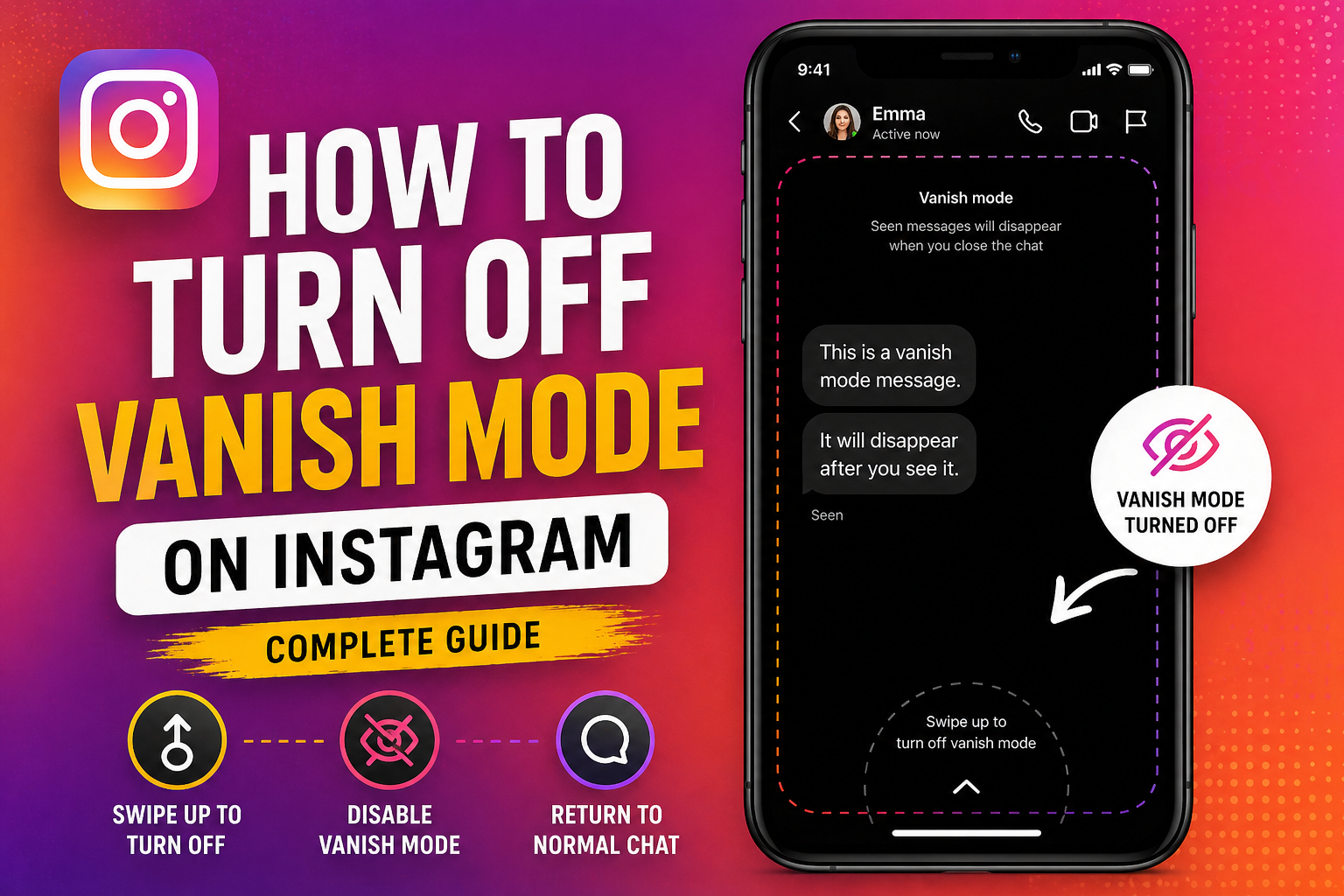
- Swipe up from the bottom of the chat screen.
- Release your finger.
Once you do this, Vanish Mode will be turned off and the chat will return to normal.
Method 2: Tap “Turn Off Vanish Mode”
Sometimes Instagram also shows a button to disable it.
Steps:
- Open the chat where Vanish Mode is enabled.
- Look for the “Turn Off Vanish Mode” option at the top.
- Tap it.
The conversation will immediately return to normal chat mode.
How to Know If Vanish Mode Is On
Sometimes users get confused because the chat suddenly looks different. Here are signs that Vanish Mode is active:
- The chat background turns dark or black.
- You see a “Vanish Mode” label on the screen.
- Messages disappear after you leave the chat.
- Instagram shows a message saying “Swipe up to turn off vanish mode.”
If you see these signs, Vanish Mode is currently enabled.
Why Vanish Mode Turns On Automatically
Many users wonder why Vanish Mode activates without them intentionally turning it on.
Here are the most common reasons:
1. Accidental Swipe
The feature activates when you swipe up in a chat, so sometimes users enable it by mistake.
2. Updated Instagram Interface
After updates to Instagram, gestures and features sometimes change, leading to accidental activation.
3. Other Person Enabled It
If you are chatting with someone and they activate Vanish Mode, it becomes active for both users.
Can Both People Turn Off Vanish Mode?
Yes. Either person in the conversation can disable Vanish Mode.
If the other person turns it on, you can still turn it off by simply swiping up again in the chat.
What Happens After You Turn Off Vanish Mode?
Once Vanish Mode is turned off:
- The chat background returns to normal.
- Messages stop disappearing automatically.
- Conversations stay in the chat history.
- Future messages behave like regular Instagram messages.
However, messages sent while Vanish Mode was active will still disappear after the chat closes.
Is Vanish Mode Safe?
Vanish Mode can be useful for privacy, but users should still be careful when using it.
Advantages
- Messages disappear automatically.
- Provides more privacy.
- Good for temporary conversations.
Things to Remember
- The other person can still take screenshots.
- Instagram will notify you if a screenshot is taken.
- Disappearing messages are not suitable for important conversations.
When Should You Use Vanish Mode?
Vanish Mode can be useful in certain situations:
- Sharing temporary information
- Casual conversations
- Private chats that don’t need to be saved
- Sending quick messages that you don’t want stored
However, it is not recommended for important discussions or business communication.
Common Problems With Vanish Mode
Some users face issues when trying to turn it off.
Vanish Mode Not Turning Off
If Vanish Mode is stuck:
- Close the chat and reopen it.
- Restart the Instagram app.
- Update the app from the app store.
Vanish Mode Not Available
In some cases, the feature may not appear because:
- The app version is outdated.
- The feature is not available in your region.
- You are chatting with someone who doesn’t support the feature.
How to Avoid Turning On Vanish Mode by Accident
Many users accidentally activate Vanish Mode. Here are some tips to avoid it:
- Avoid swiping up inside chat windows.
- Scroll carefully while reading messages.
- Keep your app updated so the interface stays consistent.
Once you know the gesture that activates it, it becomes easy to avoid.
Frequently Asked Questions
Can I recover messages sent in Vanish Mode?
No. Once the chat is closed, messages sent in Vanish Mode disappear permanently.
Does Instagram notify screenshots in Vanish Mode?
Yes. If someone takes a screenshot, Instagram will notify the other person.
Can I disable Vanish Mode permanently?
No. Instagram does not currently allow users to permanently disable the feature. You can only turn it off in individual chats.
Is Vanish Mode like Snapchat?
Yes, it works similarly to disappearing messages on Snapchat.
Conclusion
Vanish Mode on Instagram is a useful feature designed for temporary conversations and extra privacy. However, many users activate it accidentally and look for ways to disable it.
Fortunately, turning off Vanish Mode is very simple. Just open the chat and swipe up on the screen, and the conversation will return to normal. By understanding how the feature works, you can control when to use it and avoid accidentally enabling it in the future.
If you frequently use Instagram messaging, knowing how to manage Vanish Mode can help make your conversations smoother and easier.