

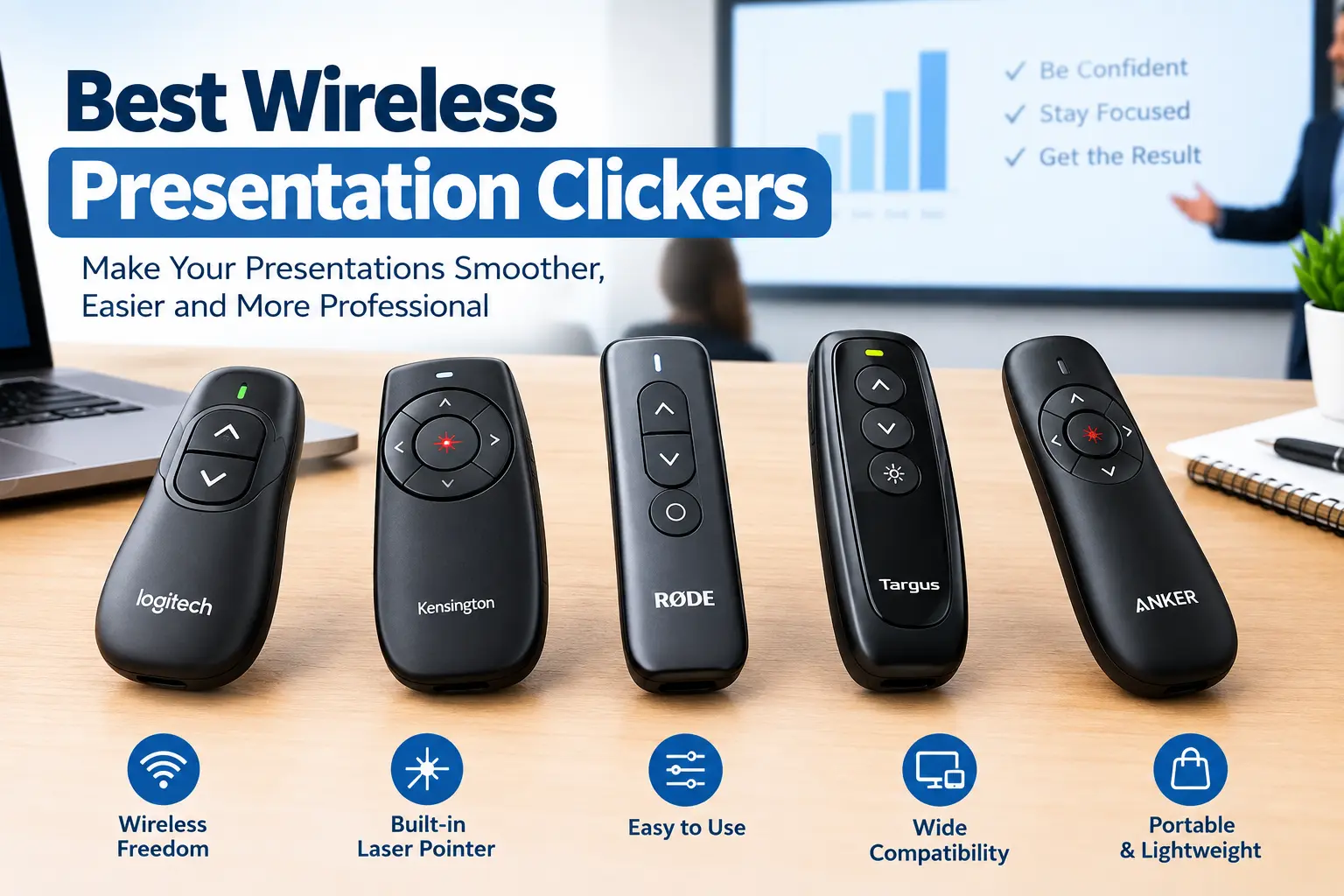
Few gadgets are as small, as cheap, and as quietly essential as a good presentation clicker. If you have ever hovered awkwardly beside your laptop, tapping the spacebar while trying to make eye contact with a room full of people, you already know why this tiny accessory matters. A wireless presentation clicker frees you from the podium, lets you walk the stage, point at what actually matters on the screen, and control your slides without breaking your rhythm mid-sentence.
But not all clickers are created equal. Some are barebones dongles that plug in and do exactly one job. Others are premium tools with digital highlighting, vibration timers, app integration, and enough range to cover a packed auditorium. Choosing the wrong one can mean a dead battery mid-keynote, a laser dot nobody in the back row can see, or a remote that simply refuses to pair with your laptop five minutes before you go on stage.
This guide breaks down the best wireless presentation clickers available in 2026, how to choose between them, and which one actually fits the way you present — whether that’s a weekly team meeting, a university lecture hall, a hybrid Zoom town hall, or a 2,000-seat conference keynote.
Why a Wireless Presentation Clicker Still Matters in 2026
It would be easy to assume that in an age of AI-generated slides, screen mirroring, and smart displays, a physical clicker is an outdated accessory. In practice, the opposite is true. As presentations have become more hybrid — split between an in-person crowd and a remote audience watching a screen share — the humble clicker has had to evolve too.
A presentation clicker solves a problem no software fix can: it lets you stand away from your laptop while still controlling it. That distance changes everything about how a talk feels. Speakers who are tethered to their keyboard tend to talk at their slides instead of to their audience. The moment you can walk, gesture, and make eye contact while still advancing slides confidently, your delivery improves almost automatically.
The category has also matured considerably. Today’s best wireless presentation clickers don’t just move slides forward and back. Many now include:
- Digital on-screen highlighting that works even on flat-panel displays and screen shares (where a physical laser pointer is completely invisible)
- Silent, vibration-based countdown timers so you never run over your allotted time
- Dual connectivity (Bluetooth and USB receiver) so the same remote works across a portless MacBook and an old office desktop
- App integrations with Microsoft Teams, Zoom, and other meeting platforms
- Rechargeable batteries with fast USB-C charging
Understanding which of these features actually matters for your situation is the real key to choosing well — and that’s exactly what this guide is built to help you do.
How We Evaluated the Best Wireless Presentation Clickers
Before jumping into specific picks, it helps to understand the criteria that separate a genuinely good presentation clicker from a mediocre one. We looked at five factors that matter most in real-world use, not just on a spec sheet.
1. Control Layout and Ergonomics
A clicker only works if you can operate it without looking down. The best models place forward, back, and blank-screen buttons exactly where your thumb naturally rests, so you can drive the remote in a dark room while mid-sentence. Anything that forces you to glance at the device — or worse, walk back to the laptop — defeats the purpose of owning one.
A dedicated blank-screen button deserves special mention here. This single feature separates entry-level clickers from professional ones. Pressing it blacks out the current slide so the room’s attention returns to you, which is invaluable during Q&A sessions, after playing a video clip, or any time you want to speak without a slide competing for attention.
2. Pointer Visibility: Laser vs. Digital Highlighting
Traditional clickers use a physical laser diode, usually red, sometimes green. Green lasers (532nm) appear five to six times brighter to the human eye than red lasers (650nm) at the same power output, which is why red dots tend to wash out in a large, brightly lit hall while green ones stay visible much farther back.
But lasers have a fundamental limitation: they only work on a physical projection surface. Point a laser at a flat-panel TV, an LCD screen, or a laptop during a video call, and it does nothing at all — nobody watching a screen share from home will ever see it. This is why premium clickers have shifted toward digital on-screen highlighting, which renders a pointer or spotlight directly into the slide content itself. It scales with the display, stays visible on any screen type, and — critically — travels through a screen share so remote viewers see exactly what you’re pointing at.
3. Connectivity: USB Receiver, Bluetooth, or Both
Most current laptops, especially ultra-thin ones, have dropped USB-A ports entirely. That makes connectivity a genuine buying decision, not an afterthought.
- USB-A nano receivers register as a plug-and-play keyboard on any machine, with zero drivers or setup. They’re extremely reliable but useless without a compatible port (or an adapter).
- Bluetooth needs no port at all and pairs directly with the laptop, but usually requires a one-time setup in system settings on each machine you use.
- Dual-mode remotes offer both, which is the safest choice if you regularly present from more than one device — your personal laptop one day, a shared conference-room PC the next.
4. Range
Range claims are almost always measured in ideal, unobstructed conditions — a number that rarely survives contact with a room full of bodies, furniture, and walls. As a practical rule of thumb:
- Around 20 meters (65 feet) is comfortable for a standard conference room, classroom, or huddle space.
- 30 meters (100 feet) or more is the bar to trust in a large auditorium or lecture hall.
If you routinely present in bigger venues, don’t cut it close on the manufacturer’s stated range — bodies in the room will eat into it.
5. Power and Battery Life
Presenters fall into two camps: people who present occasionally and people who present constantly. For the former, a single replaceable AAA battery is genuinely the lower-maintenance option — there’s no charging cable to remember, and swapping a battery in the green room takes ten seconds. For the latter, fast USB-C charging (some models offer roughly three hours of use from just a one-minute top-up) means the remote is never the reason a talk goes sideways.
With those criteria established, here’s how the leading wireless presentation clickers actually stack up.
The Best Wireless Presentation Clickers of 2026
Best Overall: Logitech Spotlight Presentation Remote
The Logitech Spotlight consistently comes out on top of expert reviews as the best all-around wireless presentation clicker, and the reasoning holds up under scrutiny. Rather than relying on a physical laser dot, the Spotlight renders a magnified digital highlight directly into your slide content. That distinction matters more than it sounds: everyone sees it, whether they’re sitting in the third row or watching your screen share from another time zone.
Why it stands out:
- On-screen highlighting solves the laser’s biggest weakness: A laser dot needs a physical surface to land on — fine for a traditional projector screen, but invisible on an LCD panel, a rear-projection setup, or any remote viewer’s monitor.
- It’s the only real option for hybrid presenting: If part of your audience is joining over Zoom or Teams, a physical laser pointer is completely useless to them.
- Built-in cursor control eliminates awkward laptop trips: The remote can move like a mouse, letting you pause an embedded video, click a hyperlink, or scroll through a PDF from wherever you’re standing — no more scrambling back to the keyboard mid-talk.
- The vibration timer is a standout feature: Set milestones through the companion Logi Options+ app, and the remote gives you a discreet buzz as you approach your time limit.
- Fast charging keeps it reliable: A roughly one-minute USB-C charge delivers about three hours of runtime — enough to cover the walk from the parking garage to the stage if you forgot to charge overnight.
Best Value / Runner-Up: Logitech R500s Laser Presentation Remote
If the Spotlight is more remote than most people need, the Logitech R500s is the clicker that does the essential job extremely well without the premium price tag. It connects over both Bluetooth and a USB nano-receiver, which means it works equally well on a portless MacBook and on the decade-old desktop PC in the office training room.
Why it stands out:
- True dual connectivity. You’re never stuck without a way to connect, regardless of which laptop you’re handed.
- A proper blank-screen button. One press blacks out the current slide, letting the room’s focus return to you during Q&A or between segments — a feature budget clickers routinely skip.
- Thumb-friendly layout. Forward, back, blank screen, and laser controls sit exactly where your thumb naturally falls, so you can operate it one-handed in a dark room while holding notes in the other.
- Low-maintenance power. A single AAA battery means no charging cable to manage and no risk of showing up with a dead remote because you forgot to plug it in.
Where it falls short: Range tops out around 20 meters, which is comfortable for a conference room but pushes its limits in a large hall. There’s no built-in timer, and the red laser — while perfectly visible in normal lighting — struggles under bright stage lights from a distance.
Best for: Anyone who wants dependable, no-fuss slide control across multiple devices without paying for features they won’t use.
Best Budget Pick: Entry-Level USB Presentation Clicker (Under $20)
For students, occasional presenters, or anyone who just needs a reliable backup clicker in the bag, an inexpensive USB-receiver-only clicker gets the core job done. These typically plug directly into a USB-A port, register instantly as a keyboard, and require zero software or drivers.
Why it stands out:
- Setup that can’t go wrong: Plug in the dongle, and it works immediately — ideal for shared lab computers, borrowed laptops, or any machine where you can’t install software.
- Broad compatibility: These budget clickers typically work across Windows, macOS, and Linux, and drive PowerPoint, Keynote, Google Slides, and PDF viewers without issue, since they simply send arrow-key commands that every presentation app already understands.
- Genuinely pocketable: Many weigh under 40 grams and are barely longer than a USB stick, with the receiver storing inside the unit so it doesn’t get lost.
Where it falls short: The biggest omission is the missing blank-screen button — a feature that meaningfully separates budget clickers from professional ones. Build quality is also noticeably more basic, and the red laser (where included) fades quickly in large, brightly lit rooms.
Best for: Students, infrequent presenters, or as a reliable spare to keep permanently in a laptop bag.
Best for Large Auditoriums: Logitech Professional Presenter R800 with Green Laser
When range and pointer visibility matter more than digital bells and whistles, the Logitech R800 remains the go-to choice for lecture halls and large conference rooms. Its green laser is the headline feature — and the reason experienced speakers still reach for it.
Why it stands out:
- Green laser visibility. At the same output power, a green laser reads five to six times brighter than a red one, staying legible from the back of a fully lit hall where red dots typically fade out around 50 feet.
- Genuine long-range control, rated up to 100 feet, well beyond what most mid-range clickers offer.
- An onboard LCD countdown timer built directly into the remote — a feature frequent conference speakers specifically request, since it doesn’t rely on a companion app.
Where it falls short: It’s bulkier than the sleek modern remotes on this list, runs on two AAA batteries with no rechargeable option, and connects exclusively through a USB-A receiver — so a portless laptop will need an adapter. Retail availability has also been inconsistent, so it’s worth confirming stock before planning a talk around it.
Best for: Conference speakers, lecturers, and anyone presenting regularly in large rooms where laser visibility and onboard timing matter more than app-based features.
Best Alternative: Kensington Expert Wireless Presenter
The Kensington Expert Wireless Presenter is a strong, often-overlooked option that loses out to the R500s mainly on connectivity, not capability. It’s plug-and-play over USB with zero drivers required across macOS, Windows, or Linux, and it natively supports Keynote.
Why it stands out:
- Two-mode design. A single button flips between slide-advance mode and full cursor control, which is genuinely useful if you annotate slides or click links mid-presentation.
- Comfortable, slim grip that holds up well across longer sessions, with a simple four-button layout that’s easy to learn quickly.
Where it falls short: USB-A only, so current MacBooks will need a dongle. The red laser fades in large, bright rooms, there’s no built-in timer, and its roughly 65-foot rated range falls short of true auditorium duty.
Best for: Presenters who have USB-A ports available, want a stronger cursor-control mode, and prefer buying new hardware rather than a renewed unit.
Best for Microsoft Teams Users: Microsoft Presenter+
If most of your presenting happens inside Microsoft Teams, the Microsoft Presenter+ is purpose-built around that workflow in a way general-purpose clickers aren’t. It’s certified for Teams and includes integrated meeting controls most other remotes lack entirely.
Why it stands out:
- Native Teams controls. Mute yourself, raise your hand, or quickly join a meeting directly from the remote, with a status light that shows when you’re muted.
- Digital on-screen pointing that works with PowerPoint Live, useful for the same reasons the Spotlight’s highlighting is useful — it’s visible to remote attendees, not just people in the room.
- Long battery life, rated at roughly six days per charge, which is excellent for people presenting daily.
Where it falls short: Its Teams-specific features are far less valuable if your organization runs on Zoom, Google Meet, or another platform, and it commands a mid-range price for what is otherwise a fairly standard remote outside the Teams ecosystem.
Best for: Sales teams, corporate trainers, and anyone whose day-to-day presenting happens primarily inside Microsoft Teams.
Best Budget Long-Range Option: Norwii N26
For presenters who want genuinely long range without paying premium prices, the Norwii N26 has built a loyal following, largely sold through Amazon at a fraction of “branded” clicker pricing. It’s a straightforward RF-based remote with a built-in USB receiver and a surprisingly long rated control distance.
Why it stands out:
- Significantly cheaper than name-brand alternatives, often available for around $10–15.
- Long-range RF transmission, with some listings rating control distance up to 100 meters (328 feet) — well beyond what similarly priced clickers offer.
- Customizable buttons via a companion app, letting you remap page-forward, page-back, and screen-blank functions to suit how you naturally hold the remote.
Where it falls short: Reliability complaints show up more often in owner reviews than with established brands, it doesn’t ship with a battery included, and its long, slim shape draws some ergonomic complaints during extended use. The laser pointer is also on the weaker side.
Best for: Budget-conscious presenters and educators who want long range and app-based customization without spending on a premium brand.
Comparison at a Glance
| Clicker | Best For | Range | Connectivity | Laser/Pointer |
|---|---|---|---|---|
| Logitech Spotlight | Hybrid & remote audiences | ~30m / 100ft | Bluetooth | Digital highlighting |
| Logitech R500s | Everyday dependable use | ~20m / 65ft | Bluetooth + USB | Red laser |
| Budget USB Clicker | Students, backup remote | ~30m / 100ft | USB receiver | Red laser (basic) |
| Logitech R800 | Large auditoriums | ~30m / 100ft | USB receiver | Green laser |
| Kensington Expert | Cursor control + annotation | ~20m / 65ft | USB receiver | Red laser |
| Microsoft Presenter+ | Teams-based meetings | Room-scale | Bluetooth | Digital pointer |
| Norwii N26 | Budget long-range | Up to 100m/328ft* | USB receiver (RF) | Red laser (weak) |
*Manufacturer-rated; real-world performance is typically shorter due to obstructions.
How to Choose the Right Wireless Presentation Clicker for You
With so many capable options on the market, the best wireless presentation clicker really depends on how and where you present. Here’s a quick decision framework:
If you present to hybrid or remote audiences regularly, prioritize digital on-screen highlighting over a physical laser. A laser pointer is invisible to anyone watching a screen share, so a model like the Logitech Spotlight or Microsoft Presenter+ will serve you far better than a traditional laser clicker.
If you present in large auditoriums or lecture halls, range and pointer brightness matter more than app integrations. Look for a green laser and a rated range of at least 30 meters, which points toward something like the Logitech R800.
If you switch between multiple laptops — say, your personal MacBook and a shared office PC — dual connectivity (Bluetooth plus a USB receiver) removes the guesswork. The Logitech R500s is purpose-built for exactly this scenario.
If you present rarely and just need something reliable, a simple, inexpensive USB clicker will do everything you actually need without unnecessary features you’ll never touch.
If your organization lives inside Microsoft Teams, the integrated meeting controls on the Microsoft Presenter+ can genuinely streamline your workflow in a way generic clickers can’t replicate.
Setup and Travel Tips for Presentation Clickers
A great clicker can still let you down if it’s not set up correctly before you walk into the room. A few habits go a long way:
- Pair or connect before you’re standing in front of the room, not after: USB receiver models register instantly as a keyboard, but Bluetooth models should be paired once on each laptop you present from ahead of time, so you’re not fumbling through system settings while an audience waits.
- Test the blank-screen button and a few slide advances before you start: This is when you’ll catch a dead battery or a laptop that hasn’t woken the USB receiver.
- Keep a USB-C-to-USB-A adapter in your bag if you rely on a receiver-based clicker but sometimes present from a portless laptop.
- Check your laser against the actual screen you’ll be using, not just at your desk. A red dot that looks perfectly fine on your home office wall can vanish entirely under stage lighting.
- Don’t lose the receiver: Nearly every modern clicker has a dedicated dock or battery-compartment slot for the USB dongle — use it, since the tiny receiver is the single easiest part to misplace.
Frequently Asked Questions
What is the difference between a red and green laser pointer on a presentation clicker?
Green lasers (532nm) appear roughly five to six times brighter to the human eye than red lasers (650nm) at the same power output. In a fully lit auditorium, a red dot becomes difficult to follow past about 50 feet, while a green laser like the one on the Logitech R800 stays clearly visible out to its full rated range.
Do wireless presentation clickers work on a Mac without installing drivers?
Most USB-receiver clickers use the standard HID protocol, which macOS recognizes as a plain keyboard, so they work with Keynote, PowerPoint, and Google Slides right out of the box with no drivers needed.
What range do I actually need for a large auditorium?
Plan for at least 30 meters (100 feet) of rated range if you’re presenting to a hall seating several hundred people. Many mid-range clickers are rated closer to 20 meters, which is comfortable for a conference room or classroom but can become unreliable at the back of a large hall.
Is a premium clicker like the Logitech Spotlight worth the extra cost?
It’s worth the upgrade in three specific situations: you regularly present to hybrid or remote audiences where a physical laser is invisible, you frequently present on flat-panel or touchscreen displays where a laser dot doesn’t work at all, or you present often enough that a discreet vibration timer genuinely changes how you pace a talk.
Final Thoughts
A wireless presentation clicker is a small purchase with an outsized effect on how confidently you present. The right one lets you step away from your laptop, hold the room’s attention, and control your slides without a single awkward pause. For most people, a dependable dual-connectivity option like the Logitech R500s covers everything a typical presentation needs. If your talks routinely reach hybrid or remote viewers, the Logitech Spotlight’s digital highlighting is worth the investment. And if you’re speaking to a packed auditorium, don’t underestimate the value of a genuinely bright green laser and real long-range reliability.
Whichever model you choose, the goal is the same: a remote you can operate without thinking about it, so all your attention stays on the audience — right where it belongs.
