

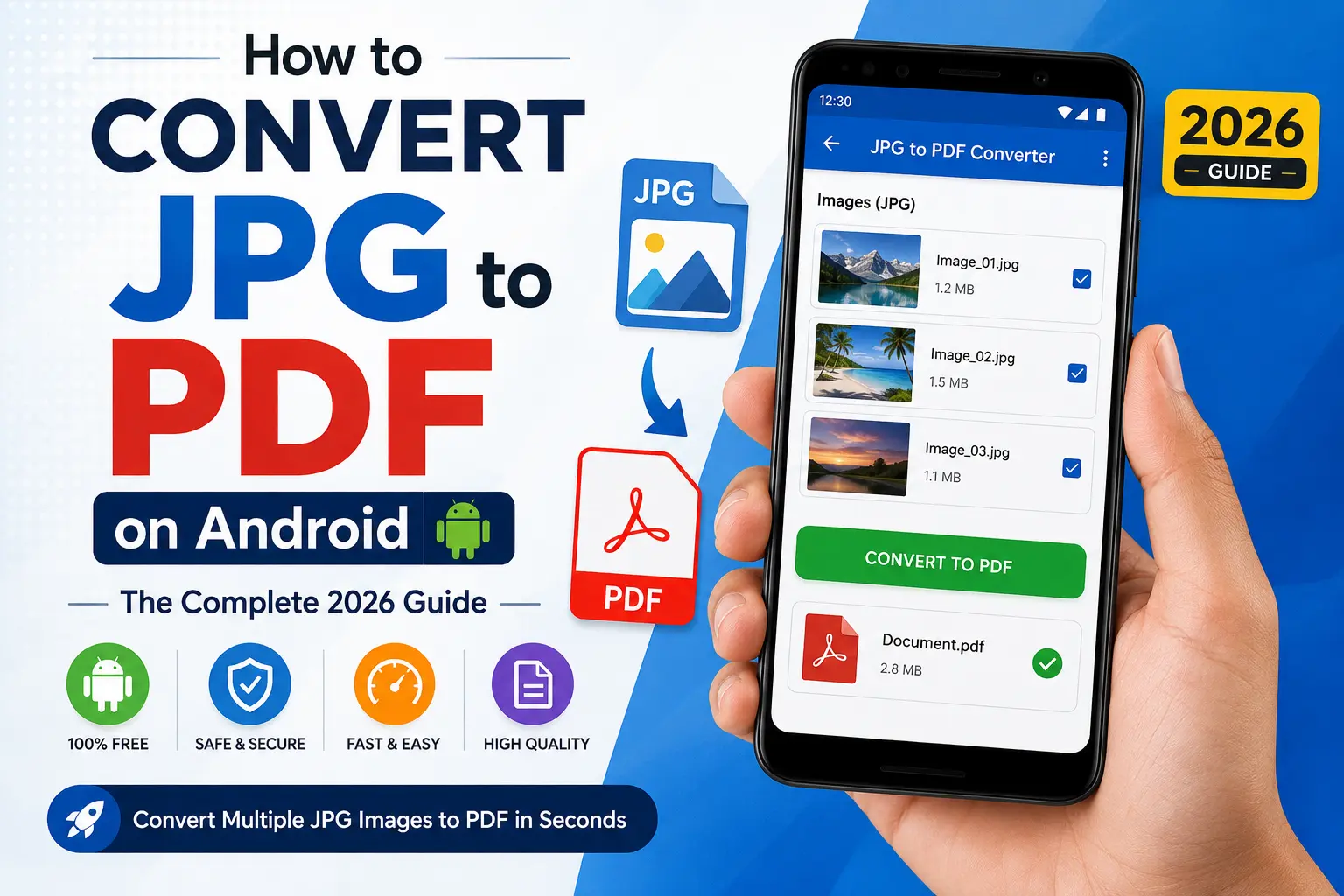
If you’ve ever needed to email a scanned form, submit an assignment, or send a receipt for reimbursement, you’ve probably run into the same annoying wall: the file is a photo, but whoever’s asking for it wants a PDF. The good news is that you don’t need a laptop, a scanner, or any special technical skill to fix this. Your Android phone already has everything it needs — and if it doesn’t, there are dozens of free apps and websites that can get the job done in under a minute.
This guide walks you through every practical way to convert JPG to PDF on Android, from built-in tricks that use apps you already have, to dedicated JPG to PDF converter apps, to browser-based tools that work even if you’d rather not install anything new. Whether you’re converting a single photo or trying to merge JPG to PDF on Android as one combined document, you’ll find a method here that fits.
Why Convert JPG to PDF in the First Place?
Before diving into the how-to, it’s worth understanding why this conversion matters so much. JPG (or JPEG) is an image format — great for photos, but not ideal for documents. PDF (Portable Document Format), on the other hand, was built specifically to preserve the layout, text, and appearance of a document across any device, operating system, or printer.
Here’s why people convert JPG to PDF on Android every day:
- Professional presentation. A PDF looks more polished and “official” than a raw photo when submitting paperwork, resumes, or reports.
- Multi-page documents. PDFs can combine several images (like multiple pages of a contract) into a single file, while JPGs are always separate.
- Smaller file sizes. A well-compressed PDF is often lighter than several high-resolution JPGs, which matters when uploading to slow portals or emailing with attachment limits.
- Universal compatibility. Nearly every computer, printer, and government or business portal accepts PDF uploads — some outright reject image files.
- Better security options. PDFs support password protection and encryption, something JPG files don’t offer at all.
- Print consistency. PDFs preserve page size, margins, and orientation regardless of which device opens them, so what you see is what gets printed.
Now let’s get into the actual methods.
Method 1: Convert JPG to PDF Using Google Drive
This is the fastest option if you don’t want to install anything new, because Google Drive comes pre-installed on almost every Android phone.
Steps:
- Open the Google Drive app on your Android device.
- Tap the + (New) button in the bottom-right corner.
- Select Upload, then choose the JPG image you want to convert from your gallery or file manager.
- Once uploaded, tap on the image to open it inside Google Drive.
- Tap the three-dot menu (⋮) in the top-right corner.
- Select Print.
- In the print preview screen, tap the dropdown next to the printer name and choose Save as PDF.
- Tap the download/save icon, choose a location, and save your file.
This method works because Android’s print system can render any supported content — including images — into a PDF file, even without a physical printer connected. It’s essentially a built-in “print to PDF” driver.
Pros: No extra app required; works on virtually any Android phone. Cons: Only handles one image at a time unless you build a document first; slightly more steps than a dedicated app.
Method 2: Use the “Print to PDF” Trick from Google Photos
If your image is already sitting in your camera roll, you can skip Google Drive entirely and go straight from the Google Photos or Gallery app.
Steps:
- Open Google Photos (or your phone’s default Gallery app).
- Find and open the photo you want to convert.
- Tap the three-dot menu.
- Look for a Print option (on many phones this is listed directly, on others it’s under “Share” first).
- When the print preview opens, tap the printer dropdown and select Save as PDF.
- Choose paper size and orientation if prompted, then tap the download icon to save.
This method uses Android’s native printing framework, the same system behind Method 1, just accessed from a different app. It’s a great fallback if you don’t use Google Drive regularly.
Pros: Fast, no upload required, works offline. Cons: Exact menu location varies by phone brand (Samsung, Pixel, Xiaomi, and others sometimes label things slightly differently).
Method 3: Convert JPG to PDF with the Google Files App
Google’s Files by Google app (often just called “Files”) is pre-installed on most Android phones and includes a lesser-known PDF conversion feature.
Steps:
- Open the Files app.
- Navigate to the folder containing your JPG image (usually under Images or Downloads).
- Long-press the image to select it. You can select multiple images here if you want to merge JPG to PDF on Android into one file.
- Tap the three-dot menu or the Share icon.
- Look for “Create PDF” or a similar option (this varies slightly depending on your phone’s software version).
- Confirm the order of your images if converting multiple files, then tap Save or Create.
- The new PDF will typically be saved into a folder like Documents > Files created from images.
Pros: Handles batch image-to-PDF conversion natively, and it’s already on your phone. Cons: Feature availability depends on your Files app version — some older versions don’t include it.
Method 4: Use a Dedicated JPG to PDF Converter App
If you convert images to PDF often, a dedicated JPG to PDF converter app is worth the download. These apps are purpose-built, work offline, and usually offer more control — reordering pages, adjusting compression, adding watermarks, or password-protecting your file.
Some popular, well-reviewed options on the Google Play Store include:
- Adobe Scan — Uses your camera to scan and clean up documents, then exports directly to PDF. Great if you’re photographing paper documents rather than converting existing JPGs.
- Microsoft Lens — Similar to Adobe Scan, with strong integration into Office apps like Word and OneDrive.
- CamScanner — One of the most established scanning apps, with OCR (text recognition) built in.
- WPS Office — A full office suite that includes an image-to-PDF tool alongside document, spreadsheet, and presentation editing.
- PDFgear — A free, offline PDF app with a dedicated “Convert to PDF” option for images, plus tools like compression and splitting.
- Xodo PDF Reader & Editor — Known for letting you convert a picture into a PDF in just a few taps, then annotate or sign it afterward.
- JPG to PDF – PDF Converter apps (there are several similarly named ones on the Play Store) — Lightweight, single-purpose apps focused entirely on image-to-PDF conversion, often supporting JPG, PNG, and WebP formats.
General steps (apply to most of these apps):
- Install your chosen app from the Google Play Store.
- Open the app and grant permission to access your Photos/Media.
- Tap the + button or “Image to PDF” option.
- Select one or more JPG images from your gallery.
- Reorder the images if you’re combining several into one document (usually done by long-pressing and dragging).
- Tap Convert or Generate.
- Save, rename, and share the resulting PDF directly from the app.
Method 5: Convert JPG to PDF Online (No App Needed)
If you’d rather not install anything, browser-based converters work directly from your phone’s default browser (Chrome, Samsung Internet, Firefox, etc.). Popular free tools include Smallpdf, PDFgear’s online converter, iLovePDF, and DocHub.
Steps (works nearly identically across most of these tools):
- Open your mobile browser and go to the converter’s website (for example, Smallpdf’s JPG to PDF tool or a similar service).
- Tap Choose File or Select JPG File.
- Pick the image(s) from your device’s storage or gallery.
- Wait a few seconds for the site to process the upload — this step requires an internet connection.
- Adjust page size, orientation, or margins if the tool offers those options.
- Tap Convert or Create PDF.
- Tap Download to save the finished file to your device, or use a Share button to send it directly.
Pros: No installation, no storage taken up on your phone, works on any device with a browser. Cons: Requires an internet connection; be cautious about uploading sensitive or private documents to third-party servers, since your file briefly leaves your device.
Method 6: Use Microsoft Office / Word on Android
If you already have Microsoft Word installed for work or school, you can insert an image into a blank document and export the whole thing as a PDF.
Steps:
- Open the Word app and create a new blank document.
- Tap Insert, then Pictures, and select your JPG.
- Resize or crop the image to fit the page if needed.
- Tap the three-dot menu, then Share, then Export as PDF (or Save As and choose PDF as the file type).
- Choose a save location and confirm.
Pros: Useful if you’re already combining the image with typed text (like a cover letter or annotated document). Cons: More steps than a dedicated converter if all you need is a simple, no-frills conversion.
Method 7: Samsung Devices — Built-In Options
Samsung’s One UI includes a few extra tricks worth knowing if you’re on a Galaxy phone.
Steps:
- Open the photo in the Gallery app.
- Tap the three-dot menu.
- Choose Print.
- In the print dialog, tap the printer name dropdown and select Save as PDF.
- Adjust paper size, color, and orientation as needed.
- Tap the download icon, choose a storage location, and save.
Pros: No extra app needed for Galaxy users. Cons: Menu wording and icon placement can differ across One UI versions.
How to Merge Multiple JPGs Into One PDF
A common reason people search for “how to convert JPG to PDF on Android” is that they’ve photographed several pages of a document — like a multi-page contract, an ID with front and back, or handwritten notes — and want them combined into a single PDF rather than several separate files.
Here’s the general workflow, which applies whether you’re using the Files app, a dedicated converter app, or an online tool:
- Select all the JPG images you want to include at once (most apps support multi-select via long-press).
- Look for a reorder or drag-to-sort screen — this lets you set the correct page order before conversion.
- Confirm page size and orientation. Most tools default to A4 or Letter size, but you can typically switch this in settings.
- Tap Convert, Generate, or Create PDF.
- Review the output before sharing — scroll through every page to confirm nothing is upside-down, missing, or duplicated.
If you frequently need to merge JPG to PDF on Android, a dedicated app like PDFgear, WPS Office, or Xodo will save time over doing it one image at a time through Google Drive or Photos.
Tips for Getting the Best Quality PDF
A rushed conversion can leave you with blurry text, oddly cropped edges, or a file that’s unnecessarily large. A few small adjustments make a big difference:
- Use good lighting when photographing documents: If your JPG started as a photo of a physical page, even lighting and a flat surface will make the final PDF far more legible.
- Crop before converting: Most gallery apps let you crop out background clutter so the PDF page isn’t mostly empty margin.
- Check orientation. Rotate images so text reads correctly before conversion — fixing this after the fact is much harder.
- Choose the right paper size: A4 or Letter both work fine for most documents, but if your original photo has an unusual aspect ratio, “Fit to page” settings usually give a cleaner result than “Fill page.”
- Compress large files if needed: If you’re photographing several high-resolution images, the resulting PDF can get large fast. Most conversion apps and online tools include a compression step — use it before emailing or uploading to portals with file-size limits.
- Use scanning mode for paper documents: If you’re converting a photo of a physical document rather than an existing digital JPG, apps like Adobe Scan or Microsoft Lens apply auto-cropping and contrast correction that a plain “print to PDF” trick won’t give you.
Common Problems and How to Fix Them
- The PDF came out blank or corrupted: This usually happens when the app loses connection mid-conversion (for online tools) or when storage permissions weren’t granted. Try again with a stable internet connection, and double-check the app has access to your Photos/Media in your phone’s Settings > Apps > Permissions.
- The image is stretched or the wrong size: Look for a “Fit to page” or “Original size” toggle before you finalize the conversion — many tools default to stretching images to fill the entire page, which can distort the aspect ratio.
- Can’t find the “Print” option in Google Photos or Gallery: Some phone manufacturers hide this under Share > Print instead of showing it directly in the three-dot menu. If it’s missing entirely, Google Drive’s print option (Method 1) will work as a reliable backup.
- The converted PDF is too large to email: Use a compression tool within your converter app, or run the finished PDF through a separate PDF compressor app or website before sending.
- Multiple images converted in the wrong order: Most batch-conversion tools sort files by filename or the order you tapped them in the gallery. Look for a manual reorder screen (usually accessed by long-pressing a thumbnail and dragging) before you finalize the conversion.
Frequently Asked Questions
Can I convert JPG to PDF on Android without an app?
Yes. Google Drive and Google Photos both include a built-in “Print to PDF” feature that requires no extra installation, since it’s part of Android’s native printing system.
Is it safe to use free online JPG to PDF converters?
Reputable services generally delete uploaded files from their servers after a short period, but for sensitive documents (IDs, financial records, medical forms), an offline app that never uploads your file anywhere is the safer choice.
Can I convert multiple JPGs into a single PDF on Android?
Yes. Most methods in this guide — the Files app, dedicated converter apps, and online tools — support multi-select and merging several images into one combined PDF, with the ability to reorder pages before finalizing.
Which method is fastest for a single image?
Google Photos’ or Gallery’s “Print to PDF” trick (Method 2) is usually the quickest for a one-off conversion since it requires no uploads or installations.
Do I need internet access to convert JPG to PDF on Android?
No, not always. Google Drive, Google Photos, the Files app, and most dedicated converter apps work completely offline. Only browser-based online converters require an active internet connection.
Will converting to PDF reduce my image quality?
Not necessarily. As long as you avoid aggressive compression settings, the PDF will retain the same resolution as your original JPG. Some tools do apply light compression by default to keep file sizes manageable, so check the settings if quality is a top priority.
Can I edit the PDF after converting it?
Yes, with the right app. Tools like WPS Office, Xodo, and Adobe apps let you annotate, add text, sign, or rearrange pages after conversion. Simple “print to PDF” methods, however, only produce a flattened, non-editable image-based PDF.
Final Thoughts
Converting a JPG to PDF on Android doesn’t require a computer, a scanner, or any special expertise — your phone already has multiple built-in ways to do it, and if you need more control, free apps and websites fill in the gaps. For a quick, one-time conversion, the Print to PDF trick through Google Photos or Drive is hard to beat. If you regularly need to merge JPG to PDF on Android or want extra features like compression, OCR, or e-signatures, installing a dedicated JPG to PDF converter app is worth the minute it takes to set up.
Whichever method you choose, the process boils down to the same basic idea: select your image, tell your phone to treat it like a printed page, and save that “page” as a PDF instead of sending it to an actual printer. Once you’ve done it once, it becomes second nature — and you’ll never have to wonder how to turn a picture into a PDF on your Android phone again.
